Led the end-to-end design process.
Protected case study
Document Management System
This project is under NDA. Enter the PIN to view the full case study.
Don't have the PIN? Ask me on LinkedIn
Product Design · UX Research · Enterprise SaaS
Document Management System
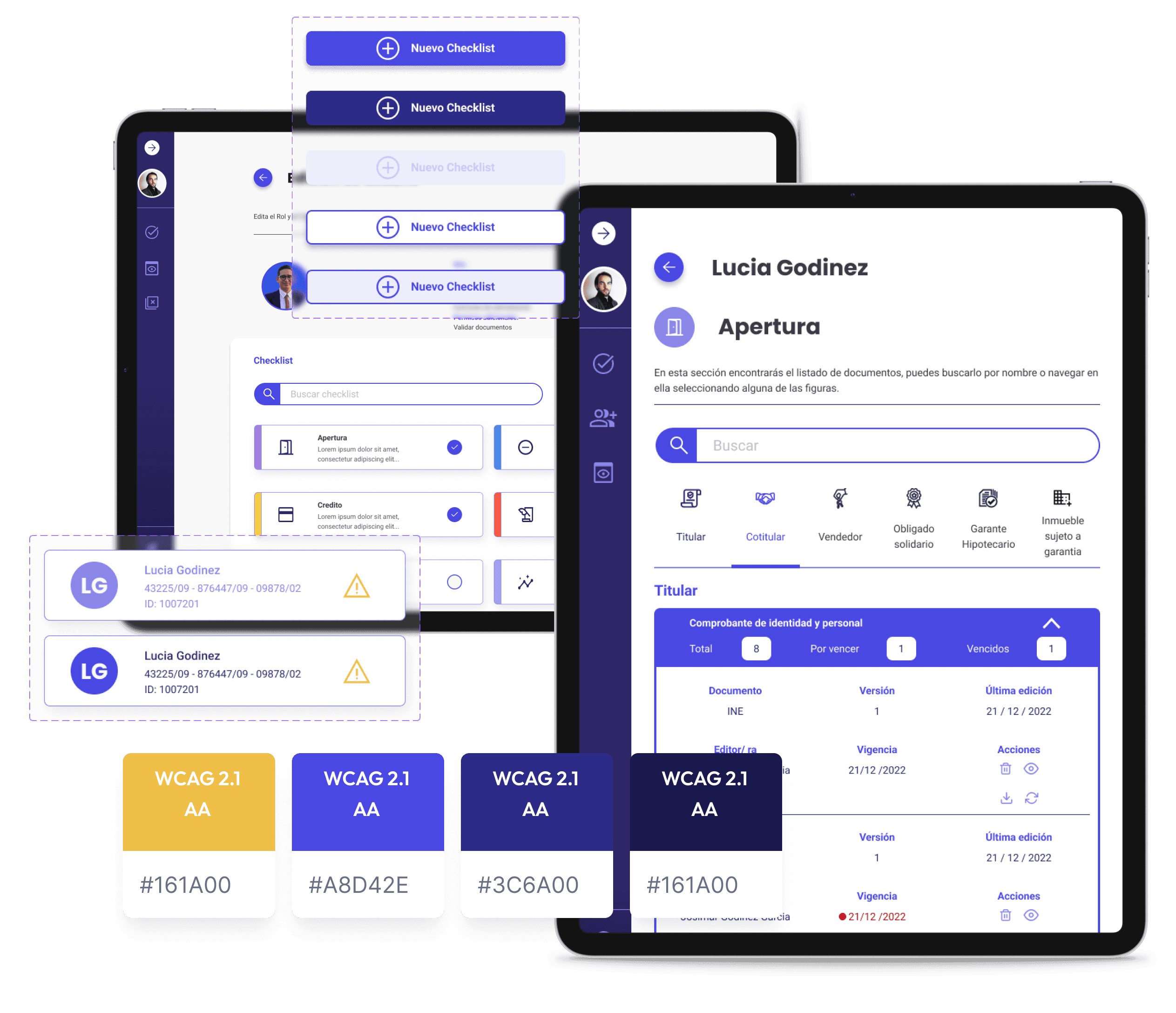
One place for every loan document at HIR Casa. I led the design of a role-based system that took documents from scattered tools to a single workflow, from upload to archive.
At a glance
Problem
Loan documents lived in separate tools per department. Files were duplicated, access was unclear and teams lost time searching.
Solution
One system with four roles, three permission layers and five document statuses, each with a clear owner.
Outcome
In an A/B test, the redesign made the core viewing task about twice as fast and cut misclicks by more than half.
Impact · V1 vs. V2
-
72.7%
Task success rate
Change: +15.6 pts, up from 57.1% in V1
-
~2×
Faster to complete
Change: 105.3s → 47.7s
-
−54%
Fewer misclicks
Change: 66.0% → 30.6%
-
64%
Preferred the redesign
Change: +28 pts
A/B test of the document viewing and download flow on Maze, 28 participants (14 per version). See the full results.
01
My role
Lead Designer on a cross-functional design team, working with stakeholders from several departments.
Kept design, product and engineering aligned across sprints.
Coordinated research and usability testing with the UX and Research team.
Drove design decisions through A/B testing and iterative prototyping.
- Team: UX, UI, Research
- Agile Scrum
- 14 weeks
- Maze
02
The challenge
HIR Casa has granted over US$2.5 B in loans and runs 30 branches across Mexico. Every loan depends on documents, and those documents were spread across tools that didn't talk to each other.
Fragmented tools
Each department used its own platform. Workflows didn't match, files were duplicated and nobody had a single source of truth for a document's status.
Unclear permissions
People either had too much access or couldn't find what they needed. There was no standard way to upload, review or approve.
Time lost searching
Teams hunted for files across systems, slowing down contract processing, legal reviews and client onboarding.
The goal
Design one system that handles a document's full lifecycle, from upload to archive, with clear roles so every person can securely upload, edit and find what they need.
- Administrator
- Editor
- Consultant
- Auditor
03
Research & discovery
We started with an alignment workshop, then structured research around three user groups to understand how each one worked with documents.
3
User groups studied separately
4
User journeys mapped end to end
4
Roles aligned with stakeholders
Key tension
Flexibility for admins vs. simplicity for everyone else
Administrators needed fine-grained control over who could see and do what. Most people just needed to find a document and act on it. We prioritised the core flows with MoSCoW, and stakeholder sessions turned that tension into three permission layers:
- Modules each role can open
- Permissions inside each module
- Special permissions on top
04
User flows
We designed six end-to-end flows. The most important was the document lifecycle, because it decides who does what, and when.
The document lifecycle
Five statuses, each with a clear owner
- 1UploadedUploaderAdds the file. The control desk is notified.
- 2ObservedControl desk → UploaderSomething is wrong. A justification note goes back and the file is re-submitted.
- 3ApprovedControl deskValidated and sent to the archive.
- 4AcceptedArchiveFinal validation. The document is done.
- 5ExpiredUploaderPast its validity date and needs an update.
Six end-to-end flows
From signing in to archiving a document
- Login and role identification
- Checklist management
- User and role administration
- Document search and viewing
- Document status lifecycle
- Document updates and expiry
05
Testing with real users
Two rounds of usability testing on the highest-impact tasks, then an A/B test to choose between two versions of the document viewing and download flow.
Usability testing · 2 rounds
Five problems the heatmaps revealed
- Hover states didn't make it clear what was clickable.
- People expected the whole table row to be clickable.
- Expand and collapse states were unclear.
- The update flow lacked context.
- Icon-only buttons had no tooltips.
A/B testing · 28 participants on Maze
V2 performed better on every metric
| Metric | V1 | V2 | Change |
|---|---|---|---|
| Task success rate higher is better | 57.1% | 72.7% | +15.6 pts |
| Avg. completion time lower is better | 105.3s | 47.7s | −55% |
| Misclick rate lower is better | 66.0% | 30.6% | −54% |
| Preferred version | 36% | 64% | +28 pts |
| Avg. difficulty 1 = easy | 1.3 | 1.2 | −0.1 |
06
What we changed, and why
Every change traces back to something we saw in research or testing.
-
We sawFewer steps consistently made tasks easier.
We changedDirect access to documents, without detours.
-
We sawPeople had too much access, or couldn't find what they needed.
We changedPermissions redesigned into three layers.
-
We sawNo standard upload, review or approval flow.
We changedClear ownership across five statuses, each with a colour and a notification.
-
We sawUsers expected full-row interactions.
We changedThe whole table row opens the document.
-
We sawThe update flow lacked context.
We changedUpload and update became clearly separate actions.
07
Final design
Three features carry most of the daily work: viewing, uploading and managing access.
01 · Viewing
Open any document straight from the client file
A document opens in a viewer with its details alongside. If it can't be shown, a clear error explains what happened instead of a blank screen.
02 · Multi-file upload
Build the checklist, then upload against it
Admins define which documents each person in the loan needs, step by step. Uploaders add files with a label and, when it applies, a validity date, so the system knows when a document will expire.
03 · Access permissions
Assign roles in a few guided steps
Admins find a user, assign a role and the checklists they can work on, and review everything before confirming. When a document's status changes, the uploader gets an email saying which document and what happened.
More screens
- Role editing and client file
- New checklist, step by step
- Checklist setup and upload
- Confirmation and checklist editor
- Document table with statuses
- User roles and notifications
08
Learnings & next steps
People adapted quickly to the flat navigation. The harder part was keeping roles simple as the organisation grew.
Users adapted quickly thanks to the flat navigation, and fewer steps consistently improved ease of use.
Icon-only buttons caused hesitation until we added tooltips, and role complexity was harder to scale in practice than on paper.
Test permission flows early, make every state change visible, and write error messages that tell people what to do next.
- Inline validation on multi-step forms
- A renewal flow for expiring documents
- Activity logs for admin auditing
- Status change notifications
- Bulk actions on documents
- A second round of usability testing on the permission builder